Option Chains
Excel Price Feed can build a live Interactive Brokers options chain in Excel from the Configuration Pane.
Use the Option Chains tab to insert a full call/put option chain like the one shown below:

Inserted cells use the streaming market data formulas (including Options & Greeks fields such as Delta and IV).
On this page:
Overview
The Option Chains tab works with the Contract Search results on the Interactive Brokers Market Data screen. After you select an underlying (stock, ETF, future, etc.), Excel Price Feed loads available option expirations, lets you pick strikes around the at-the-money (ATM) level, choose which fields to include, then inserts streaming formulas into Excel.
There are two insert modes:
- Insert Chain — writes a straddle-style grid: Call columns | Strike | Put columns, with one row per selected strike.
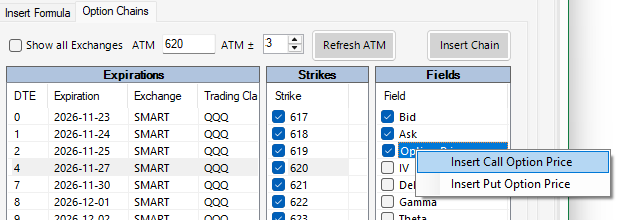
- Insert Single Option Field Formula (right-click on a field) — writes one
EPF.IB.Stream_MarketDataformula into the active cell for the selected strike, expiration and field.
Prerequisites
- Excel Price Feed is installed and activated.
- You are connected to Interactive Brokers (TWS or IB Gateway) from the Excel Price Feed ribbon / Configuration Pane.
- Your IB account has the market data subscriptions needed for the underlying and options (for example OPRA for US equity options).
Large chains open many concurrent market data lines (one per option contract × field).
IB accounts typically start with 100 concurrent lines; see the market data formulas page for more detail.
Building an Options Chain walkthrough
1. Open the Configuration Pane
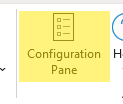
Open the Configuration Pane from the Excel Price Feed tab in Excel:
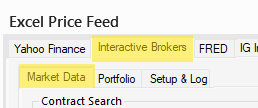
Select the Interactive Brokers tab, then Market Data.
2. Select an underlying
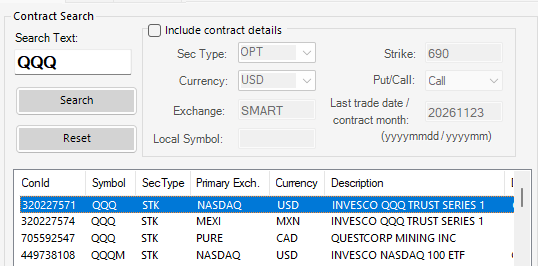
Search for an underlying for the options chain (the stock/ETF/future, not an individual option contract).
For example, here we have selected QQQ, the Invesco ETF which tracks the Nasdaq 100, by clicking the row in the search results:
See the Contract Search guide for search tips.
3. Open the Option Chains tab
The Option Chains tab is found below the search results list:
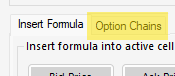
The Contract Search list stays visible above the Option Chains controls so you can pick an underlying and then build a chain for it.
ATM is filled from the underlying price (bid/ask mid when available, otherwise last/close). You can edit the ATM box to centre the strike window yourself.
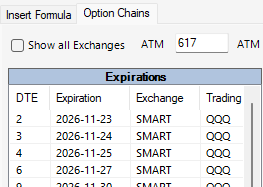
With the Option Chains tab selected, Excel Price Feed requests option chain parameters for that contract and fills the Expirations list:
4. Choose an expiry date
The Expirations list shows days to expiry (DTE), expiration date, exchange, trading class and multiplier.
- Select the expiration date (and trading class / exchange row) you want.
- Optionally tick Show all Exchanges if you need every exchange row IB returns; leave it unticked to keep the list focused on the usual SMART / primary listings.
- Click a column header to sort (DTE, Expiration, Exchange, Trading Class, Multiplier).
After you select an expiration, Excel Price Feed validates strikes around ATM so only contracts that actually exist are listed.
You can refresh the ATM price with the latest price from Interactive Brokers at any time by pressing the "Refresh ATM" button.
ATM ± controls how many price units (USD for US options) above and below ATM are shown (default 5, up to 50):
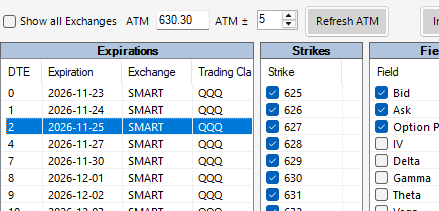
Note: most US near expiry options, upto 2 weeks away, are available in increments of $1, however later expiries are generally available in increments of $5 (other markets may vary).
5. Choose strikes and fields
In the Strikes list, check the strikes you want in the chain. Use Select All / Deselect All as needed.
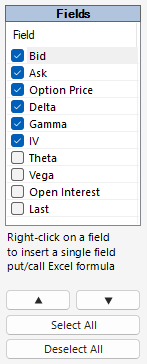
Check the fields to include as columns on both the Call and Put sides. Use the up/down buttons to reorder columns; the order is remembered:
6. Insert options chain into Excel
- Select a cell in Excel where the top-left of the chain should start.
- Confirm an expiration is selected, at least one strike is checked, and at least one field is checked.
- Click Insert Chain.
Excel Price Feed writes a grid starting at the active cell:
- Row 1: Calls label over the call fields, Puts label over the put fields.
- Row 2: column headings for each checked field, with Strike in the middle.
- Following rows: one row per checked strike — Call formulas | strike number | Put formulas.
In the example below you can see cell D3 selected and the formula that is inserted for the 605 Call Delta:
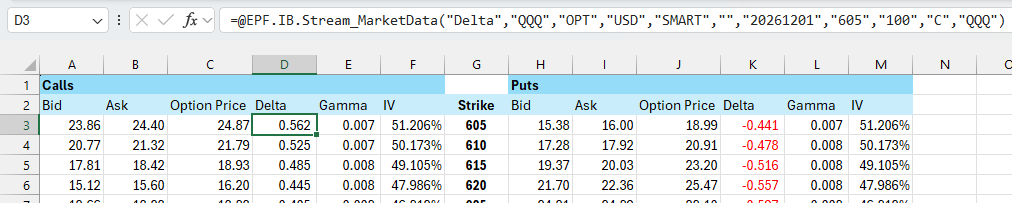
Each Call/Put cell streams live data for that contract. The strike column is a plain number (not a formula).
Insert a single option field formula
To insert one formula for a specific field, rather than a full options chain:
- Select the Excel cell where the formula should go.
- Select the expiration.
- Select (highlight) the strike row you want. (Don't just tick the checkbox, highlight the actual row.)
- In the Fields list, select the field (for example Bid or Delta).
- Right-click the field and choose Insert Call {field} or Insert Put {field} (for example Insert Call Option Price / Insert Put Option Price).
A single EPF.IB.Stream_MarketData formula is written to the active cell for that strike, expiration, right (C or P) and field.
What formula is inserted?
Both Insert Chain and the single-field insert use:
=EPF.IB.Stream_MarketData(field, symbol, securityType, currency, exchange, primaryExchange, lastTradeDateOrContractMonth, strike, multiplier, right, tradingClass)
Example for a QQQ call option price:
=EPF.IB.Stream_MarketData("Option Price","QQQ","OPT","USD","SMART","","20261125",620,100,"C","QQQ")
Parameters are filled from the selected underlying, expiration row (exchange, trading class, multiplier, expiry) and strike.
Security type is OPT for equity/index options, or FOP when the underlying is a future.
The right is C for calls and P for puts.
Full parameter documentation: EPF.IB.Stream_MarketData.