Interactive Brokers: Overview & Setup
Excel Price Feed provides a new library of simple to use Excel formulas which bring live prices and portfolio details into Excel. All formulas can be used with either an Interactive Brokers live or paper trading account.
More formulas coming soon.
You can easily incorporate these formulas into your existing spreadsheets. There are no complicated RTD formulas to use and there is no dependency on any VBA code.
On this page:
- Trader Workstation (TWS) Setup
- Excel Price Feed Setup
- Connect to Interactive Brokers
- Market Data Setting
- Default Currency Setting
- Next Steps
Trader Workstation (TWS) Setup
1. To use the Excel Price Feed Interactive Brokers formulas you need to have installed Trader Workstation (TWS) and logged into it. If you do not have TWS installed, click here to download it from the Interactive Brokers website.
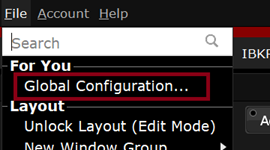
2. From the "File" menu select the "Global Configuration" option:
3. On the left hand side select "API" then "Settings". Ensure that "Enable ActiveX and Socket Clients" is ticked.
4. Ensure there is a "Socket Port" specified. This is usually set to 7496 by default and you do not need to change this. Make a note of the port number.
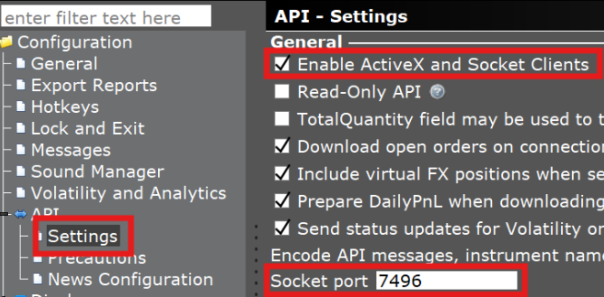
4. Click "Apply" and then "OK" to close the Global Configuration dialogue.
Excel Price Feed Setup
1. Select the "Configuration Pane" from the Add-in toolbar in Excel:

2. Select the "Interactive Brokers" tab and then the "Setup" tab:
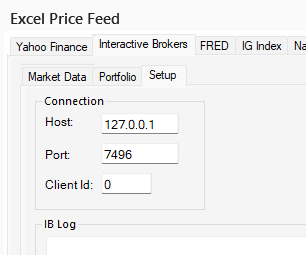
3. On this screen you can specify how Excel Price Feed will connect to TWS. Generally, you can leave the default values on these fields:
- Host: This is the host address of the machine where TWS is running. If you are running TWS on the same computer as Excel, you can leave "127.0.0.1" in the Host field as this is the local computer. If you run Excel on a different computer, then enter the IP address of the TWS computer here.
- Port: This should be the same as the "Socket Port" setting in the TWS API settings (see Step 3 above).
- Client Id: Every client API program that connects to TWS must have a unique Client Id (it needs to be a positive number). If Excel Price Feed is the only application that you connect to TWS then you can leave the default value (0). If you have other applications that connect to TWSthen please ensure this Client Id is set to a different value than what is set up in your other applications.
Connect to Interactive Brokers
After completing the setup you can connect Excel Price Feed to Interactive Brokers using the "Connect" button on the tab bar. Once connected, you can start using the Excel formulas:
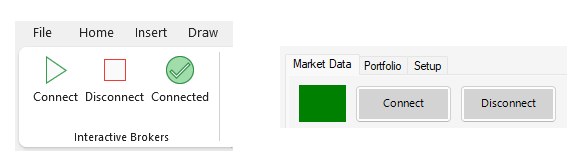
The "Connection Status" icon on the tab bar shows whether Excel Price Feed is connected to TWS. In the "IB Log" pane, you can see any messages sent from IB/TWS to Excel Price Feed.
Market Data Setting
Before requesting any data, you may want to change the Market Data setting depending on what, if any, market data subscriptions you have with Interactive Brokers. You can do this via the Configuration Pane in the Setup tab.
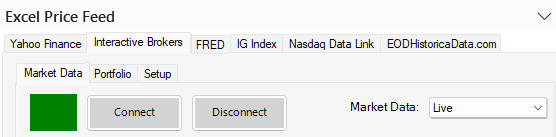
There are 4 possible options:
- Live: Streaming data relayed back in real time. Market data subscriptions are required.
- Delayed: Free, delayed data is 15 - 20 minutes delayed. This is available for many types of instruments without market data subscriptions. If live data is available a request for delayed data is ignored by Interactive Brokers.
- Frozen: Last data recorded at market close. Requires the same market data subscriptions necessary for live data.
- Delayed Frozen: Requests delayed "frozen" data for a user without market data subscriptions.
Generally you want to select "Live" if you have any market data subscriptions, otherwise "Delayed".
Default Currency Setting
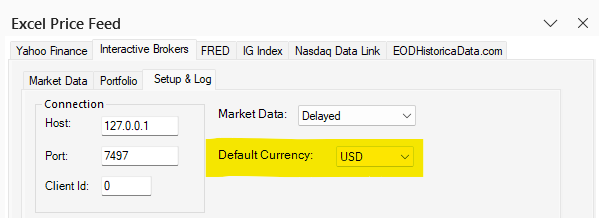
When requesting market data for a security, it is generally necessary to specify the currency of the security. To simplify this there is a "Default Currency" setting on the Setup tab, which enables you to set a default currency which will always be used when you don't specify a currency when using one of the market data formulas:
Next Steps
Once you have setup Interactive Brokers with Excel Price Feed you can start using the formulas in your spreadsheet.
- You can use the Contract Search functionality to find specific contracts and insert market data formulas.
- Market Data Formulas Reference: Market Data Formulas
- Portfolio Formulas Reference: Portfolio Formulas