Excel Formula Reference: Portfolio
Excel Price feed enables you to stream your Interactive Brokers portfolio data directly into your spreadsheet via a single, simple Excel formula.
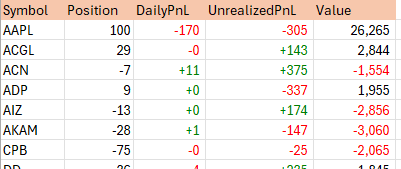
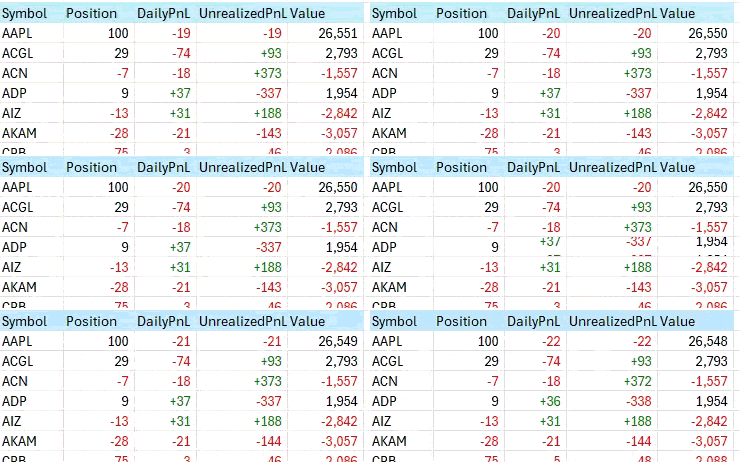
Here we can see our Interactive Brokers portfolio in Excel, updating in realtime:
This formula is a dynamic array formula and as such will return multiple rows and columns of data. Please see our dynamic array guide if you need more details on what Excel dynamic arrays are and how to use them.
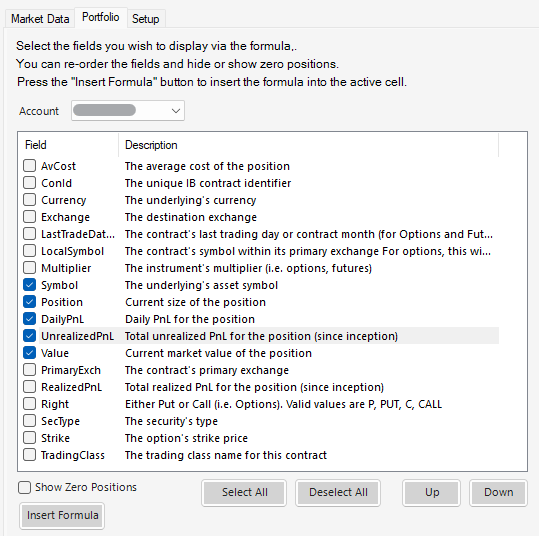
You can either use the Configuration Pane to build the formula before inserting it into your spreadsheet or enter the formula manually in your spreadsheet.
Enter formula using the Configuration Pane
Select the fields you want to return. You can change the order by highlighting a field and using the "Move Field Up" and "Move Field Down" buttons to re-order it.
Press the "Insert Formula" button to insert the formula into the currently active cell of your spreadsheet. The data will not overwrite other data already present in your sheet. If there is not enough empty cells for it, you will see a #SPILL! error.
Enter the formula manually
=EPF.IB.Stream_Portfolio(fields, accountCode, sortColumn, sortOrder, showZeroPositions)
Input Parameters
| Parameter | Optional | Description |
|---|---|---|
| Fields | Yes | Comma separated list of fields to return, see "Portfolio Fields" section below for details. |
| AccountCode | Yes | The Account Code of the portfolio. |
| SortColumn | Yes | Column name to sort on. |
| SortOrder | Yes | Sort order, either "ASC" for ascending or "DESC" for descending; default is ascending. |
| ShowZeroPositions | Yes | Include zero positions, either 1 for Yes or 0 for No; default is No. |
If you do not specify any parameters, i.e. just use the formula like this: =EPF.IB.Stream_Portfolio() then all fields will be returned for your default account.
Portfolio Fields
The first parameter defines which fields you want to return from the formula. If you don't specify any then all fields will be returned.
The order you list the fields corresponds to the order in which the fields are returned; for example if you want two columns: symbol first then value, specify "symbol,value".
| Field | Description |
|---|---|
| AvCost | The average cost of the position |
| ConId | The unique IB contract identifier |
| Currency | The underlying's currency |
| DailyPnL | Daily PnL for the position |
| Exchange | The destination exchange |
| LastTradeDateOrContractMonth | The contract's last trading day or contract month (for Options and Futures) |
| LocalSymbol | The contract's symbol within its primary exchange For options, this will be the OCC symbol. |
| Multiplier | The instrument's multiplier (i.e. options, futures) |
| Position | Current size of the position |
| PrimaryExch | The contract's primary exchange |
| RealizedPnL | Total realized PnL for the position (since inception) |
| Right | Either Put or Call (i.e. Options) |
| SecType | The security's type |
| Strike | The option's strike price |
| Symbol | The underlying's asset symbol |
| TradingClass | The trading class name for this contract |
| UnrealizedPnL | Total unrealized PnL for the position (since inception) |
| Value | Current market value of the position |
Examples
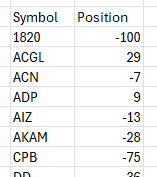
Stream my Interactive Brokers portfolio, showing only Symbol and Position, for account "ABC1":
=EPF.IB.Stream_Portfolio("Symbol,Position", "ABC1")
Stream my Interactive Brokers portfolio, showing Symbol, Position, DailyPnL, UnrealizedPnL and Value for my account:
=EPF.IB.Stream_Portfolio("Symbol,Position,DailyPnL,UnrealizedPnL,Value")