How to Manage Your Subscription
On this page you can find instructions on how to view, change and cancel your subscription.
This is a guide with example screenshots. Your real subscription details appear only once you enter the Customer Portal.
Open the Customer Portal
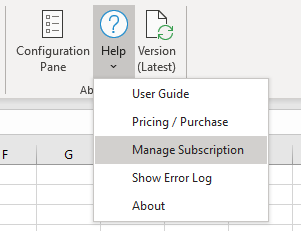
There are two ways to open the Customer Portal:- Click on this link and enter the email address you used for your Subscription.
- Alternatively, open Excel and follow the steps below:
- Open Excel
- Select the Excel Price Feed tab
- Click Help
- Click Manage Subscription
- The Customer Portal will open in a web browser
The subscription portal is hosted by Stripe, our payment provider. Any payment details entered are handled directly by Stripe and are not stored by Excel Price Feed.
View subscription
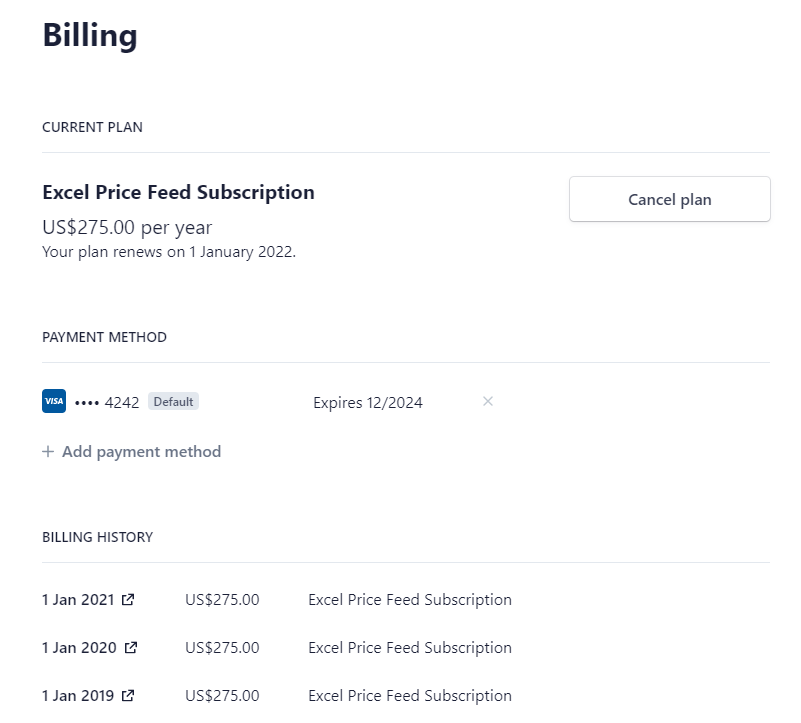
On the dashboard you can view your current subscription along with the price and the renewal date.
Change payment method
You can view and change your payment method. If you wish to change your card details press the "+ Add payment method" button.
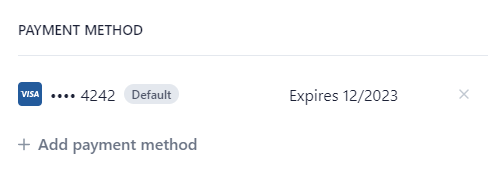
You can also remove a payment method by pressing the "x" button to the right of the payment method. Please ensure you have at least one payment method registered.
Download invoices
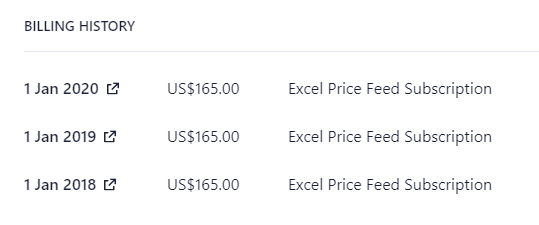
You can also view all past invoices for your subscription. To view the actual invoice, click the date and a new window will open with the invoice details where you can download a pdf copy for filing or printing:
Cancel subscription
You can cancel your subscription at any time, simply press the "Cancel Plan" button.
Please note you will be able to continue using the add-in for the rest of the period you have already paid for, however we don't provide partial refunds if the cancellation occurs partway through a month/year.
FAQ
Why don't I see the same information as in the screenshots?
The screenshots show sample data only. Your portal will display your own subscription details.
I clicked Manage Subscription but nothing happened
Check whether your web browser opened behind Excel.
The portal doesn't open
Check your pop-up blocker settings and default web browser.
I see the wrong subscription or an empty portal
The email address used at purchase must match the email address used to activate the add-in.
Why don't I see any invoices yet?
Your first invoice appears after your first charge.
Can I purchase a subscription from the portal?
No. New subscriptions must be purchased from the Pricing page.
Will I lose access immediately after cancelling?
No. You can continue using Excel Price Feed until the end of your paid period.